

AI Text Effects: Paint Words Into Your Photo
Upload a photo, type a short phrase and pick a style. The AI text effect generator draws them into the scene as glowing neon, chalk, graffiti, shiny gold letters or icing on a cake.
- 9 styles
- 4 AI models
- One free try
New accounts get a free first try.
My Images
What Are AI Text Effects?
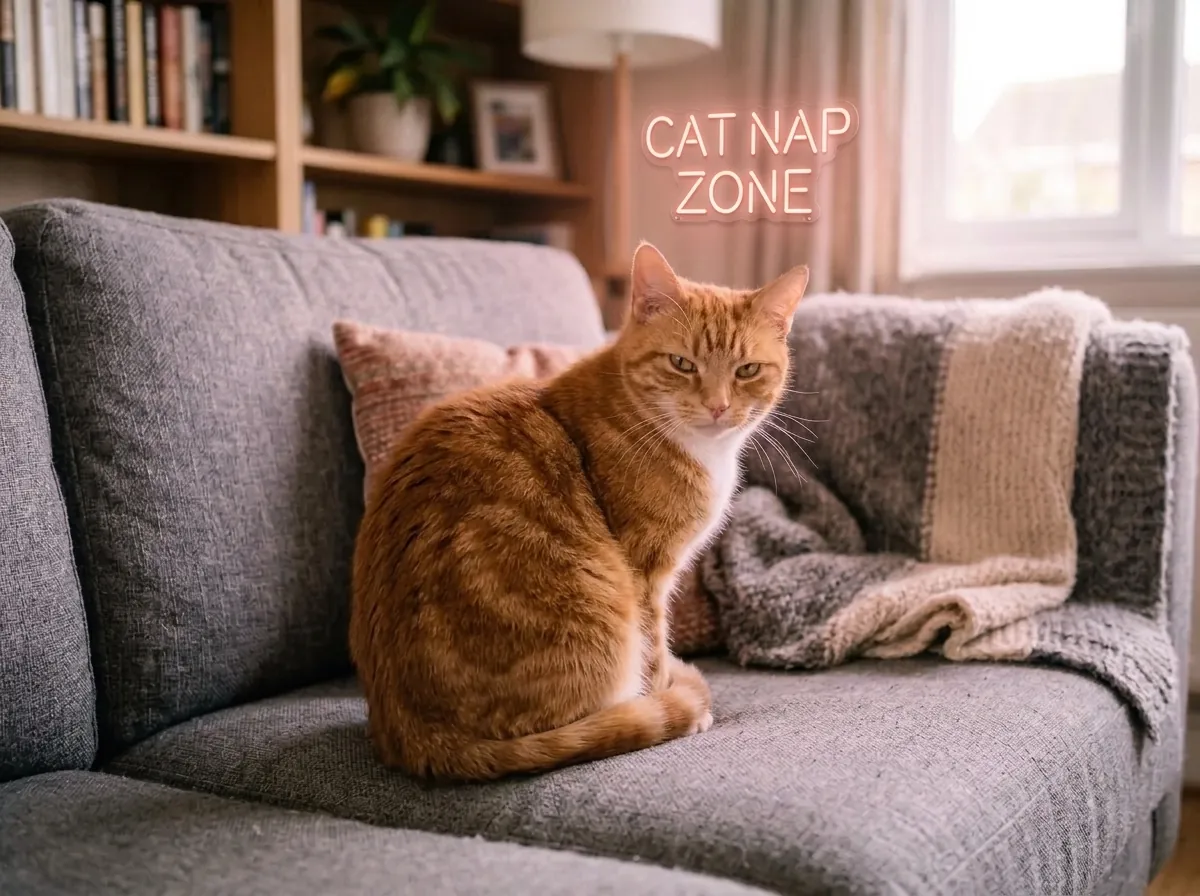
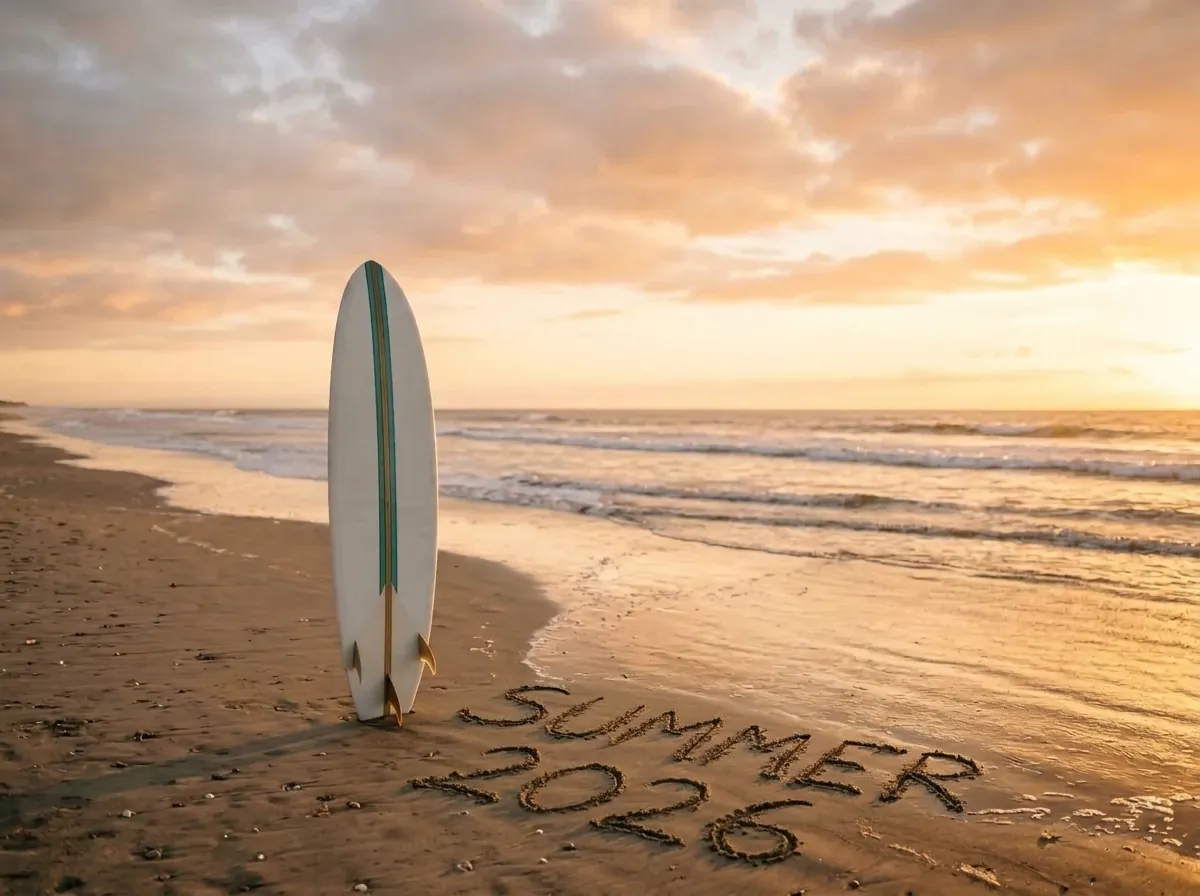
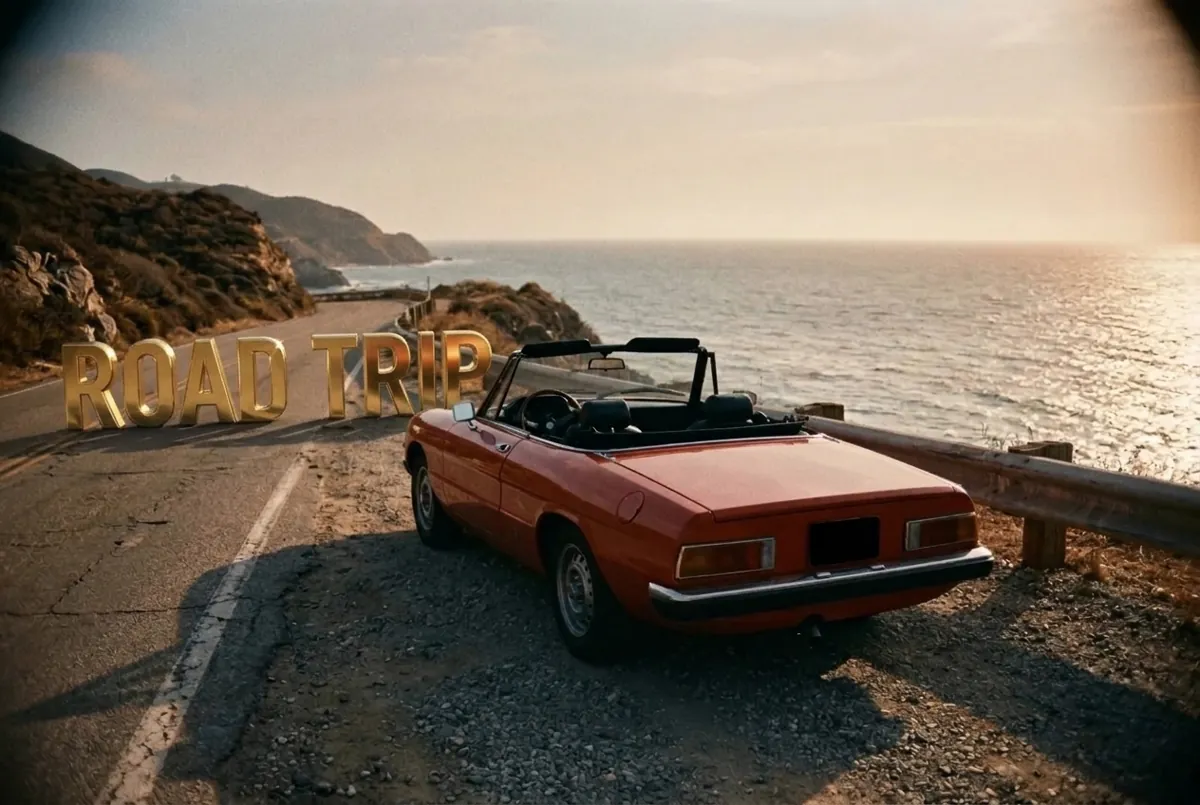
Most editors, including the free one on this site, lay a font on top of a picture. AI text effects work differently: an AI model repaints part of the photo so the lettering becomes an object in it. A neon tube throws light on the wall, chalk has dusty edges, golden type casts shadows on the road and sand letters are pressed into the beach.
That is why AI text effects suit photos you want to share as they are: a birthday picture, a shop window, a travel shot, a product photo. You describe what to write and how it should look; the AI text effect generator decides where the light falls and how the material bends around each letter.
How to Use the AI Text Effect Generator
Four steps, about a minute per image.
- 01
Upload a photo
Pick your photo: JPG, PNG or WebP. A clear scene with some empty space suits AI text effects. - 02
Type the text
Up to 60 characters. Short text comes out cleanest. - 03
Pick a style
Neon, chalk, graffiti, golden 3D, behind the subject, sand, sky, icing or shop lettering. Add colour or placement notes if you like. - 04
Generate and download
Log in with Google, press Generate and download the result from your images on the right.
AI Text Effects Examples
Every picture below was made with the AI text effect generator on this page, from the same sample photos as our other tools.
Neon
In the sand
Golden 3D
In the sky
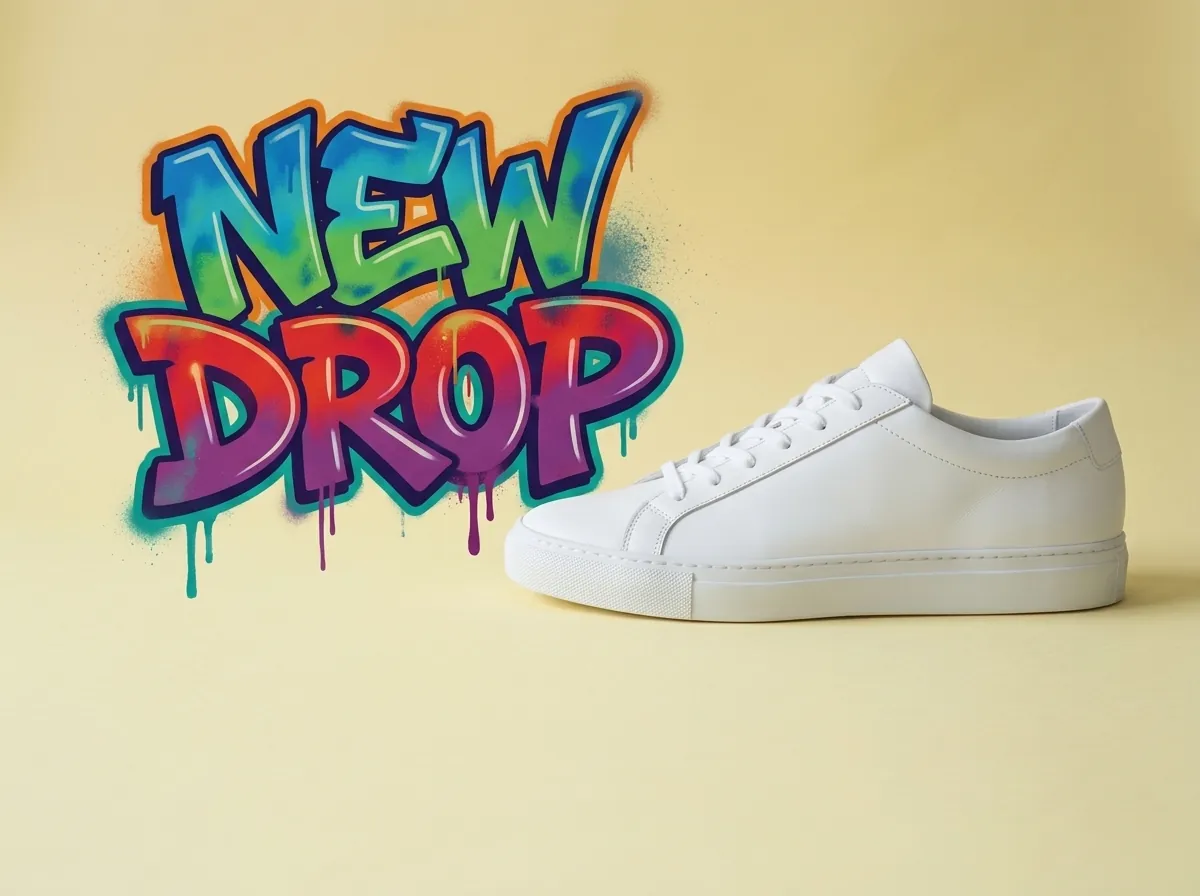
Graffiti
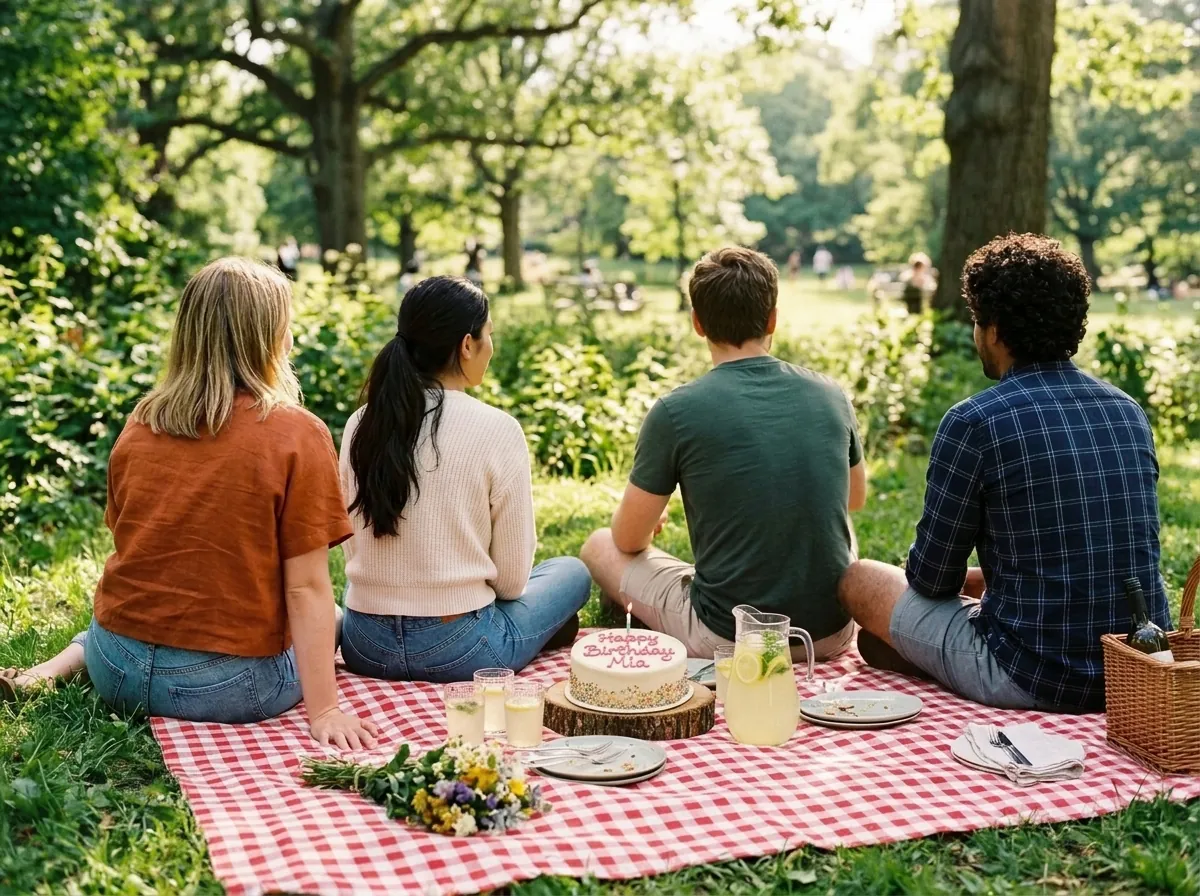
Icing
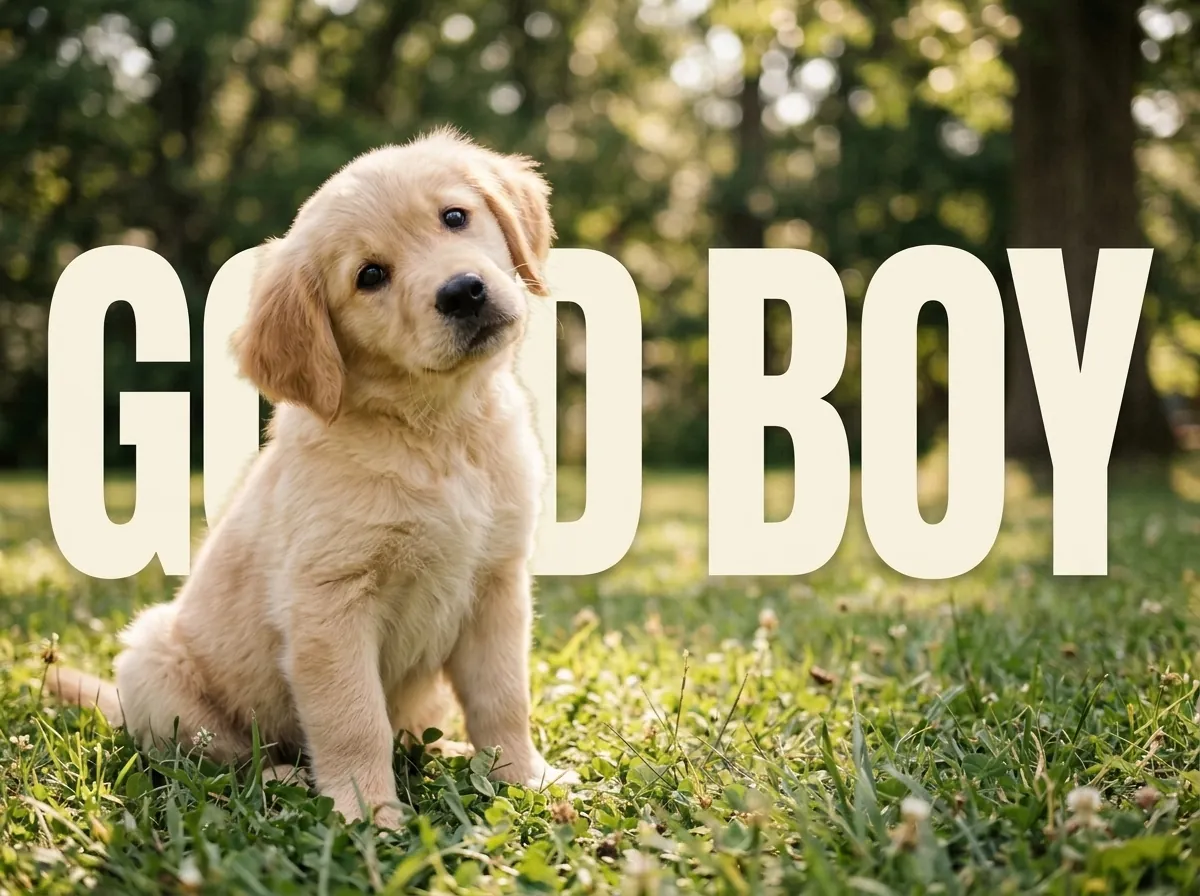
Text Behind the Subject
The magazine cover look puts big type behind a person, a pet or a product, so the subject overlaps the letters. Doing this by hand means cutting out the subject and stacking layers; with AI text effects you choose Behind the subject and type the text.
Bold, short phrases work best: a name, a team, one word for the mood. Pick a photo where the subject stands clear of the background and leave some sky or wall around it for the letters.
Neon, Chalk, Graffiti and Lettering Styles
- Neon sign: glowing tubes on a wall, with light falling on the room. Good for bars, bedrooms and night shots.
- Chalk: hand lettering on a board, for menus, classrooms and cafés.
- Graffiti: colourful spray paint for streetwear, sneakers and album covers.
- Shop sign: painted letters on a banner, board or poster that belongs in the scene.
Add a note such as “warm pink”, “above the sofa” or “small, in the corner” and the AI text effect generator follows it.
Letters in the Sand, the Sky or on a Cake
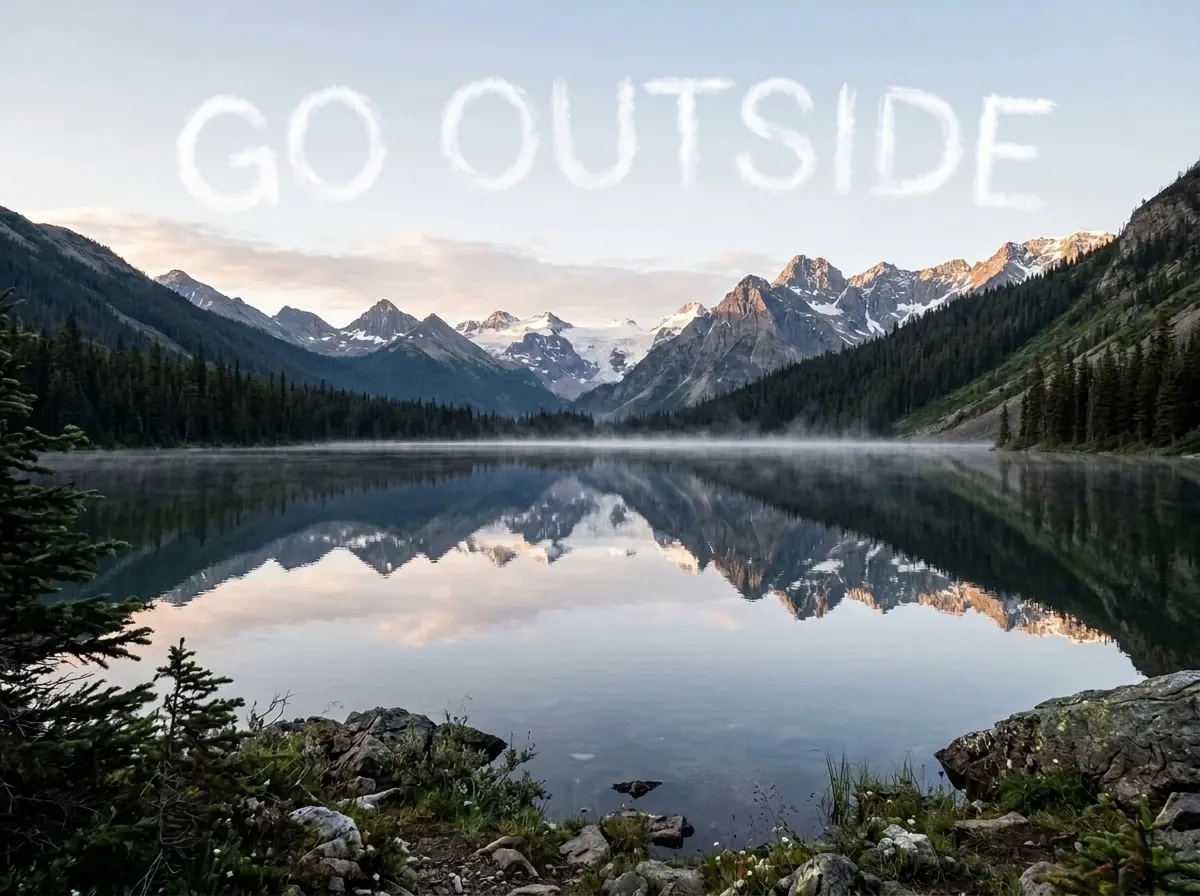
Some AI text effects only make sense on one kind of photo: letters drawn in the sand on a beach, cloud writing in a wide sky, a name piped in icing on a birthday cake. The model shapes each letter from the material that is already there.
These styles look best when the surface is large and in focus. For a cake, use a photo taken from slightly above; for the sky, leave the top third of the frame empty.
Ideas for AI Text Effects
Where painted-in lettering works better than a plain caption.
Birthdays
Shops and cafés
Travel photos
Product launches
Weddings and save the dates
Thumbnails and covers
AI Text Effects or the Free Editor?
The regular editor places exact fonts on top of the photo, instantly and without an account. AI text effects change the picture itself. Use the one that fits the job:
| Regular editor | AI text effects | |
|---|---|---|
| Result | Text on top of the photo | Text inside the scene |
| Spelling | Exact, any length | Best under five words |
| Speed | Instant | About 30–60 seconds |
| Account | Not needed | Google account |
| Cost | Free | Credits |
| Photo upload | Stays in the browser | Uploaded to the model |
Models and Prices
The AI text effect generator offers four image models. They read the same instructions but each has its own strengths:
| Model | Credits | Best for |
|---|---|---|
| Nano Banana 2.1 (default) | 9 | Realistic light, faces kept |
| Qwen Image 3.0 | 8 | Long phrases, exact spelling |
| Seedream 5.5 | 7 | Bold poster looks |
| GPT Image 2.5 | 10 | Playful, illustrated styles |
Every run is paid in credits. New accounts get 10 free; Pro costs $9.90 a month for 500, or $58.80 a year for 3,960. Prefer no subscription? The Starter Pack gives 500 for $9.90 and the Plus Pack 2,000 for $29.90. See pricing for details.
Tips for Clean AI Text Effects
- Keep it short: one to five words read best.
- Use capitals for signs, neon and 3D letters.
- Say where: “on the wall”, “in front of the car”, “above the lake”.
- Give one colour, not a palette.
- Check every letter before you download; run it again if one is off.
Photos That Work Best
Your photo needs a place for the text. Wide shots with a wall, a sky, a table or a beach give the cleanest AI text effects; tight close-ups and busy crowds give the least room. Good light helps too: a sharp daylight photo leads to sharper letters than a dark, noisy one.
Faces and people stay as they are, but keep important details away from the area where the text should go. If the first result covers something, add a note such as “top left” or “on the wall behind them” and run it again.
Your Photos and AI Text Effects
Unlike the other tools on this site, AI text effects need the photo on a server: your photo is uploaded, sent to the AI model and saved with the result in your account so you can download it again. You can delete any result from your images list.
Images made during the free try carry a small watermark and may be picked as examples on this site. With a plan or a credit pack there is no watermark and your results stay private. Only upload photos you have the right to use.
FAQ
What are AI text effects?
AI text effects are letters that an image model draws into a photo as part of the scene: neon tubes on the wall, letters in the sand, icing on a cake or huge type behind a person. The light, perspective and texture follow the photo instead of sitting on top of it.
How much does the AI text effect generator cost?
Each run costs 9 credits with the default model and 7 to 10 with the others. A new account gets enough for one free try. After that, Pro is $9.90 a month for 500, or buy a one-time pack: 500 for $9.90 or 2,000 for $29.90.
Do I need an account?
Yes, for AI text effects only: log in with Google so your balance and results are saved. Everything else on the site still needs no account.
Will the AI spell my text correctly?
Usually, for short phrases. Keep the text under about five words, use capitals for signs and check the result before you download. If a letter is wrong, run it again or try Qwen Image 3.0, the model that is best at exact spelling.
Are my photos private?
Your photo is uploaded so the model can work on it and is kept in your account history. Results from the free try may be picked as examples on this site; with a plan or a credit pack your results stay private.
Is there a watermark?
Results from the free try carry a small watermark. Any plan or pack removes it, and you can download every result at full size.
What if a run fails?
You only pay for finished images. If the model fails or times out, the cost goes back to your balance automatically.
Can I use AI text effects for commercial work?
Yes. Paid results can be used in posts, ads, thumbnails and product pages. Do not upload photos of people without their permission.
Can I change the text after the image is made?
Not in the same image: run the AI text effect generator again with the new text. For text you want to keep editing, use the main editor, which places live text you can change at any time.
Does it work on a phone?
Yes. Upload from the camera roll in Safari or Chrome, wait about a minute and save the result from your images list.
Try it free
Try AI text effects on your photo
Log in with Google and try your first AI text effects free. See your lettering painted into the scene in about a minute.
- One Google login
- Nothing charged for failed runs
- No watermark with any plan or pack